♫DJ Bulk Search
THE SMARTER WAY TO SEARCH YOUR DJ LIBRARY

Your music.
Your library. Your set.

DJ Bulk Search helps DJs search huge collections of music, videos and karaoke files in seconds. Index your folders, turn charts and tracklists into matched songs, review the best versions and build VirtualDJ playlists — without moving or duplicating your original media.

✓ Search your own files✓ Smart video matching✓ Picture tracklists✓ VirtualDJ .m3u export
Try the free interactive demo → Windows & Mac downloads Explore 8 featuresBuilt for real DJ music collections
EXPLORE THE SOFTWARE

Eight powerful sections. One simple workflow.

Explore each section to see how DJ Bulk Search can save you time preparing your next set. Application screenshots are shown alongside an illustration of the new CSV importer.

01
FEATURE 1 OF 8

Index your music folders

Build a searchable catalogue of your own music collection
Actual DJ Bulk Search application screenshot showing section 1: Index your music folders

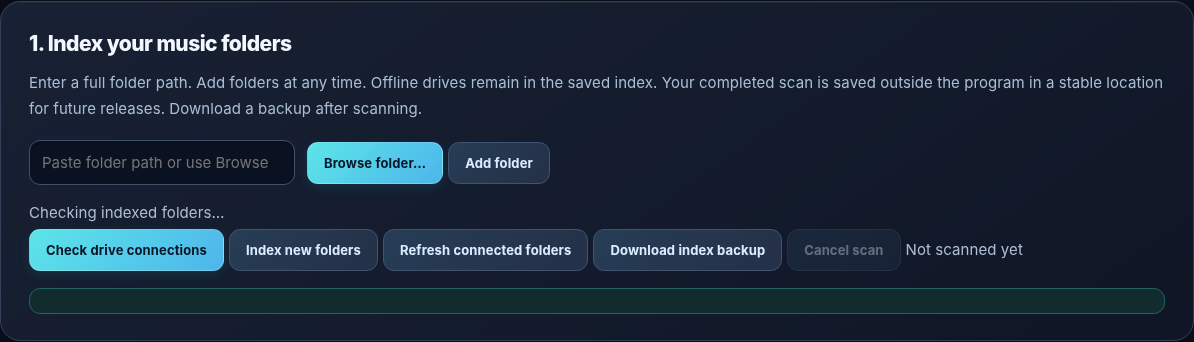
Start by pointing DJ Bulk Search towards the folders where you keep your music, music videos and karaoke files. The program indexes the files in those locations so you can search your collection without repeatedly opening hundreds of folders. Add another drive or folder whenever your collection grows.

Your existing files stay exactly where they are: indexing creates a catalogue, not a second copy of your music. Previously indexed offline drives remain recorded, and you can check drive connections, scan newly added folders or refresh connected locations. A downloadable index backup provides another way to safeguard the time spent building a large catalogue.

GOOD TO KNOW

Ideal for DJs who have built up years of tracks across multiple external hard drives and want one practical way to find them.
02
FEATURE 2 OF 8

Picture to Playlist

Turn a screenshot of a chart or tracklist into a usable song list

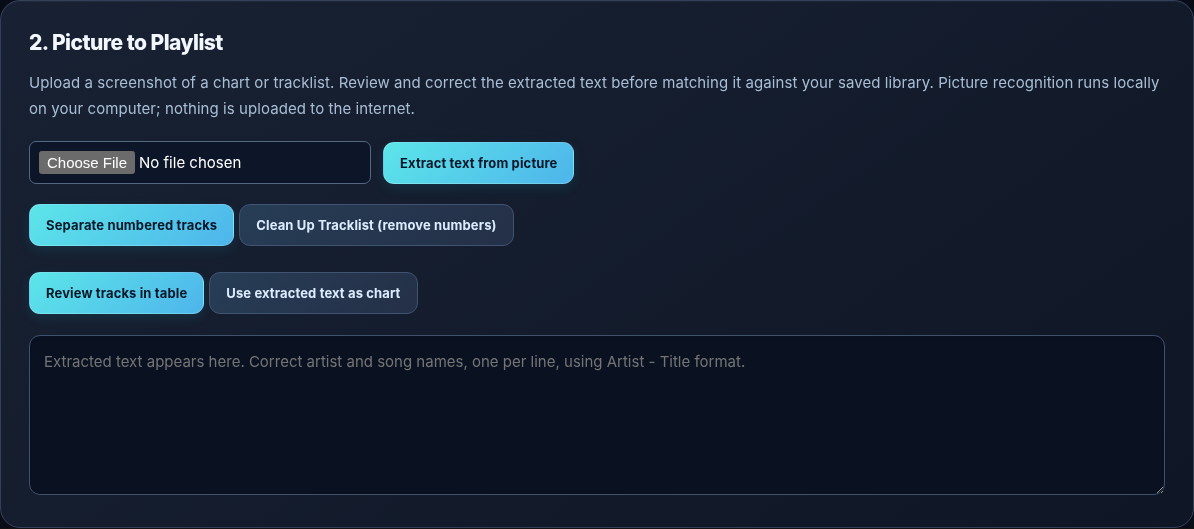
Actual DJ Bulk Search application screenshot showing section 2: Picture to Playlist

Found a chart online, a printed tracklist or a picture of a list you want to play? Load an image and DJ Bulk Search extracts the text using picture recognition on your own computer. Instead of typing every track by hand, you can work from the extracted list.

Tools help separate numbered entries, remove chart positions and review individual tracks in a table. You can correct artist names, song titles and formatting before sending the list into the matching workflow. This is particularly useful with older charts and imperfect screenshots, where a quick manual check improves accuracy.

GOOD TO KNOW

Picture recognition is performed locally. Always check the extracted names before matching, especially when the original image is blurry or uses unusual typography.

03
FEATURE 3 OF 8

Paste your chart

Match a whole list of songs against the files you already own

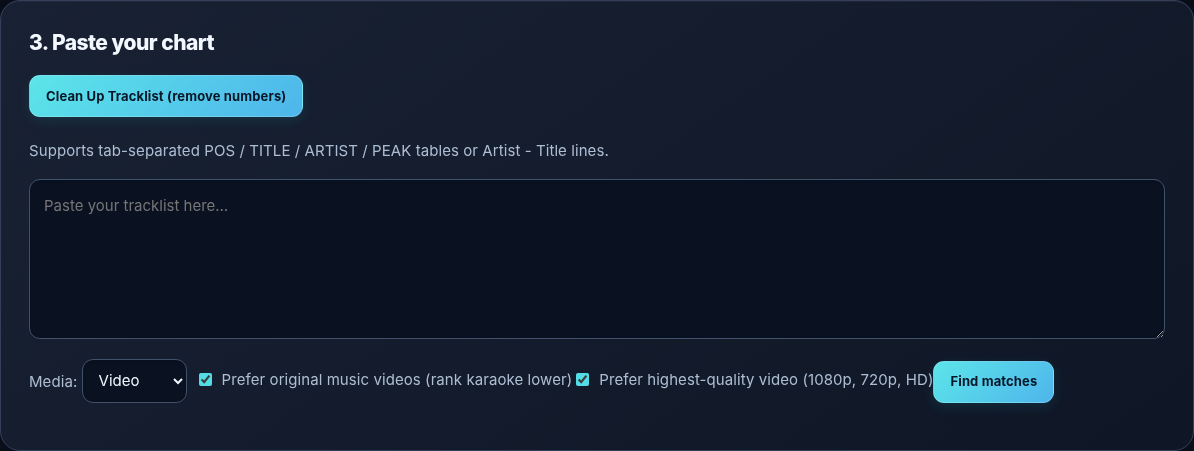
Actual DJ Bulk Search application screenshot showing section 3: Paste your chart

Paste a chart, a prepared set list or a simple list of artist and title pairs. DJ Bulk Search supports familiar “Artist - Title” lines as well as tab-separated chart tables, and includes a cleanup option for unwanted track numbers.

Choose whether you want Video, Audio, Karaoke or All formats. For music-video sets, you can ask the matcher to prefer original music videos and higher-quality files, including filenames indicating 1080p, 720p or HD. Then run one search across your indexed library instead of hunting for each track separately.

GOOD TO KNOW

A useful starting point for decade nights, themed events, countdowns, music quizzes and any set built from a long list of requests.

04
FEATURE 4 OF 8

CSV Playlist Import

Turn exported Spotify playlists into matches from your own music library

4. CSV Playlist Import

Import a playlist CSV, then match the songs against your own music, video and karaoke library.

♫   Drop an Exportify CSV file here
or choose a CSV file using the import button
Import playlist CSV…

Imported tracks appear in Section 3, ready for Find matches.

Already have a Spotify playlist you'd like to turn into a DJ set? Export its artist names and song titles as a CSV file, then drag the CSV into Section 4 of DJ Bulk Search or use the Import Playlist CSV button. The program reads the track information and prepares it for matching against your own indexed files.

You can use Exportify to export your Spotify playlists to CSV. Open Exportify, choose a playlist, click Export, then load the resulting CSV file into DJ Bulk Search. Exportify is an independent third-party service; review its permissions before connecting your Spotify account.

Imported songs are placed into Section 3, where you can review them, choose Audio, Video, Karaoke or All and find matches. DJ Bulk Search does not download Spotify audio or require a Spotify sign-in inside the commercial application.

GOOD TO KNOW

CSV import is included in the planned £3.99 public edition. Your music stays on your existing drives, ready to be referenced in a VirtualDJ playlist.

05
FEATURE 5 OF 8

Review results

Stay in control of every match before it goes into your playlist

Actual DJ Bulk Search application screenshot showing section 5: Review results

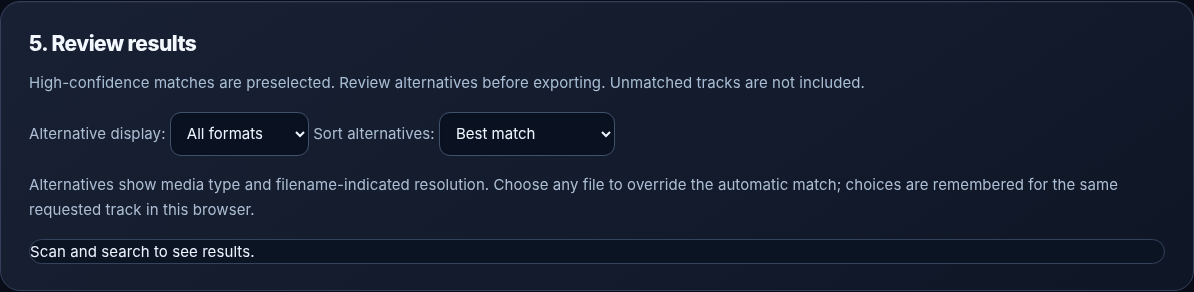
After a search, DJ Bulk Search presents its suggested matches. High-confidence matches are preselected, but you can inspect alternatives rather than accepting the first file found. This matters when you own several versions of a track, such as an original video, a live performance, an audio-only copy or a karaoke version.

Filter the alternatives by media type and sort by best match, video quality or preference for the original music video. You can manually choose a different file when you prefer it. The interface shows filename-indicated resolution and helps you spot tracks that still need attention.

GOOD TO KNOW

The aim is a better-quality, more reliable DJ playlist—not merely the highest possible match count.

06
FEATURE 6 OF 8

Find Missing Songs

Resolve the gaps without starting your search again

Actual DJ Bulk Search application screenshot showing section 6: Find Missing Songs

A long playlist will rarely match perfectly first time, particularly when filenames contain extra words, alternative spellings, featured artists or remixes. The Find Missing Songs area gathers tracks without a selected match so you can deal with them in one place.

Try a shorter title or a different spelling, search the saved index again and assign the correct file when you find it. These manual choices are then included in your exported playlist. You do not have to abandon an otherwise successful 100-song or 400-song list because a few entries need extra attention.

GOOD TO KNOW

Especially handy for oldies, rare tracks and large libraries with inconsistent filenames.

07
FEATURE 7 OF 8

Create VirtualDJ playlist

Export your chosen tracks without duplicating your music

Actual DJ Bulk Search application screenshot showing section 7: Create VirtualDJ playlist

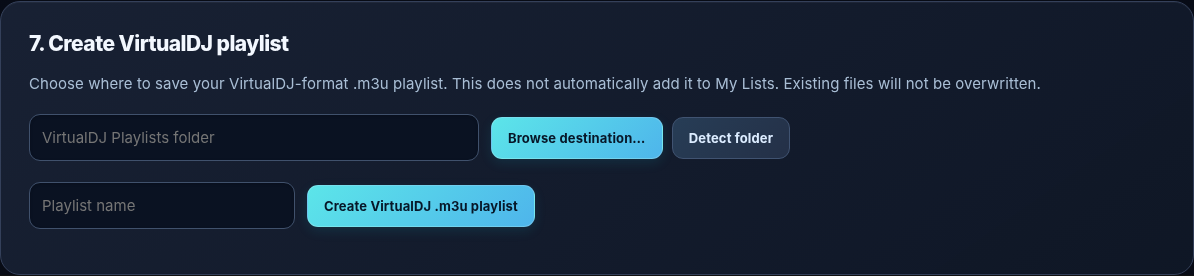
Once you are happy with the selected matches, choose a destination and a name for your playlist. DJ Bulk Search creates a VirtualDJ-compatible .m3u playlist referencing the original media files on your drives.

This is a playlist-only workflow: it does not need to copy hundreds of video files into another folder or consume space with duplicates. The export avoids overwriting an existing file and gives you a portable playlist document to open or import into VirtualDJ.

GOOD TO KNOW

Your source drives must be connected and the referenced file paths must remain available when you use the playlist at a gig.

08
FEATURE 8 OF 8

Folder-to-Playlist Builder

Make a playlist from an entire folder and its subfolders

Actual DJ Bulk Search application screenshot showing section 8: Folder-to-Playlist Builder

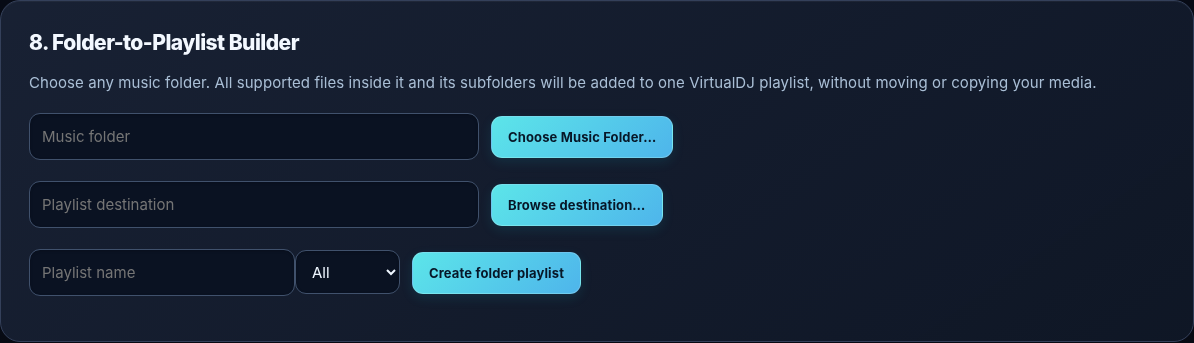
Sometimes you do not need to paste a chart at all. Choose a folder containing a collection—perhaps a decade, a Mastermix series or a folder of videos—and DJ Bulk Search can gather supported files from that folder and its subfolders into one playlist.

Choose the destination, enter a playlist name and select All, Video, Audio or Karaoke. The application generates a VirtualDJ-format .m3u playlist that points to your existing files, so the originals remain untouched. This can replace a long session of opening individual folders and adding files manually.

GOOD TO KNOW

A fast way to turn a collection of nested folders into something you can browse and play from VirtualDJ.

TRY BEFORE YOU BUY · NO DOWNLOAD REQUIRED

DJ Bulk Search Interactive Taster

Try matching a tracklist, reviewing alternative files and building a sample VirtualDJ playlist. This browser demo uses a small fictional DJ library — it does not access your computer or scan your real music.

1. Paste a tracklist

Use the example below or enter your own artist–title lines. Only songs in the demo library can match.

Example library: 12 familiar tracks, with audio, video and karaoke alternatives for selected songs. No account, trial period or payment required.

2. Review matches

Choose a preferred media type and review any alternative versions.

Press “Find matches” to begin.

3. Preview your VirtualDJ playlist

Build a realistic-looking .m3u preview from the selected demo matches.

Your playlist preview will appear here.

The preview uses example paths, not playable files. Real .m3u exports from your own indexed collection are available in the desktop app.

4. Ready for your own library?

DJ Bulk Search on Windows indexes your actual drives, matches large charts and exported playlist CSV files, and creates VirtualDJ playlists pointing to your existing media.

£3.99 one-off purchase, no seven-day trial

Windows release preparations are underway. Secure checkout and downloads will be available when launch testing is complete.

Windows & Mac availability
DESKTOP DOWNLOADS

Windows & Mac editions

Windows · v2.4.4

Customer package prepared. Download will be activated with the £3.99 checkout so the paid software isn't distributed publicly without purchase.

Download pending secure checkout

Mac · Apple Silicon

The matching commercial Mac build is not ready for release yet. We'll add its download once tested.

Build and testing pending

Try the interactive taster now

DJ BULK SEARCH

Spend less time searching. More time DJing.

DJ Bulk Search for Windows is being prepared for its £3.99 one-off public release. An Apple Silicon Mac release is planned. Secure checkout, licensing and download delivery will be enabled after release testing is complete.

See the Windows & Mac download status above

CSV playlist importing is included in the planned public edition. Direct Spotify account integration is not included.